Creating your LedgerMind account
One email field and a six-digit code — the whole sign-up, every screen shown. For what comes after, see “Your first GST return”.
New visitors · 6 min read · Updated August 2026
1. Open the sign-up screen
Go to ledgermind.co.nz and press Get Started Free. You land on the sign-in card — the one returning users see. Switch it over with the link at the bottom.
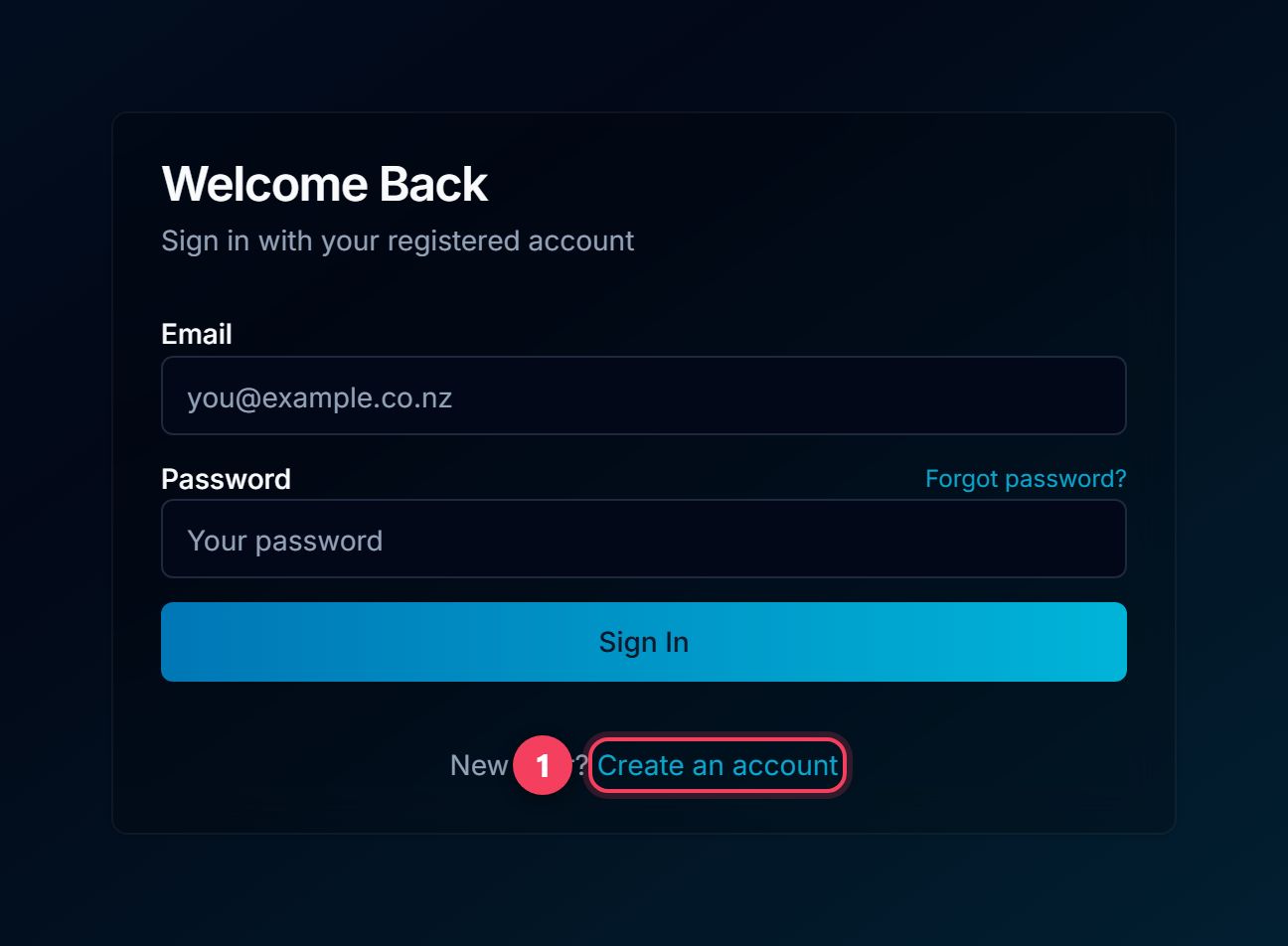
- Create an account flips the same card into sign-up mode. Nothing navigates; you stay on this page for the whole of part one.
2. Type your email — that is the whole form
One input. No password field, no company name, no phone number, no "how did you hear about us".
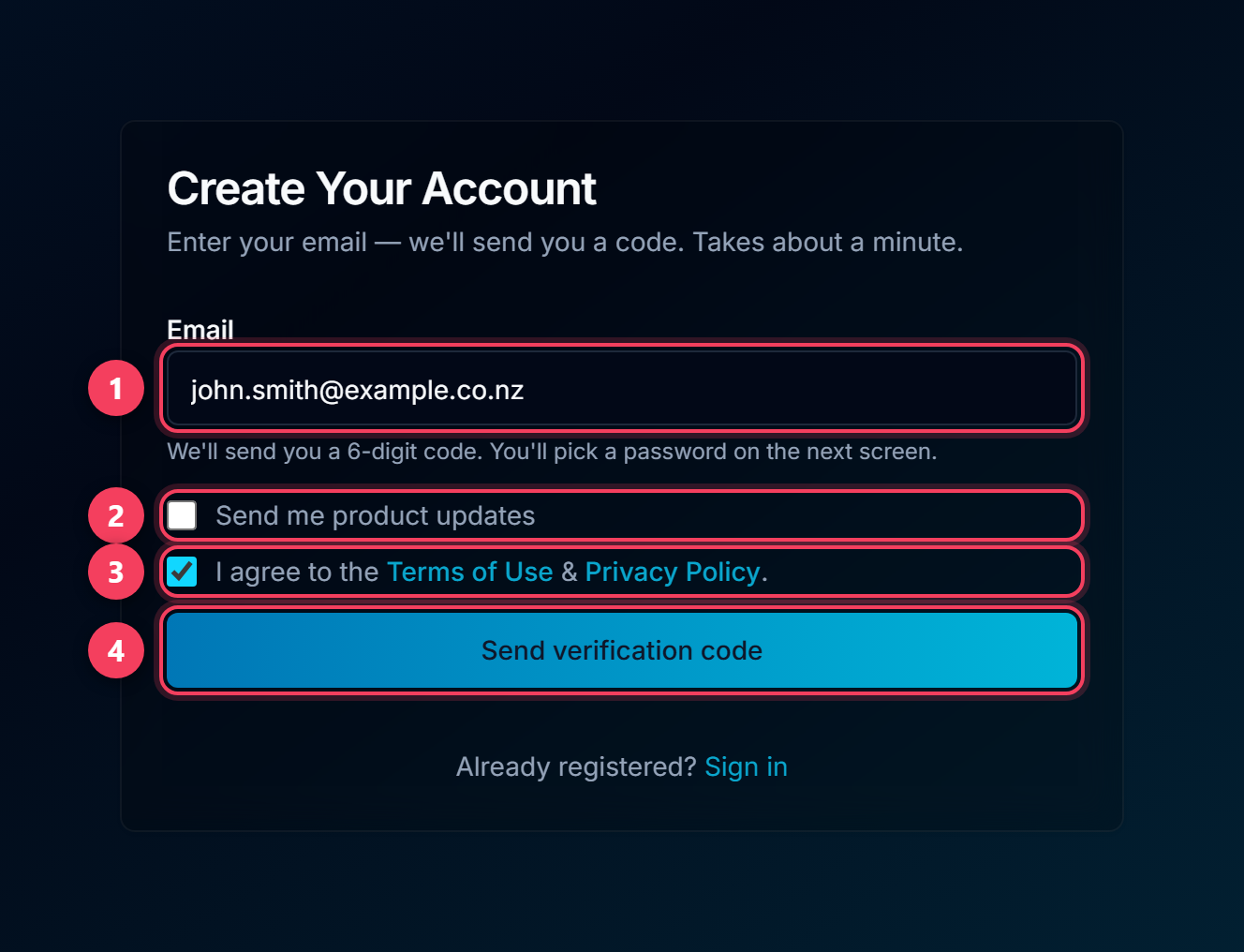
- Your email address. This becomes your sign-in name, so use one you will still have in a year.
- Product updates — optional. Leave it unticked and nothing about your account changes.
- Terms of Use & Privacy Policy — required. Both open in a new tab, so you can read them without losing this page.
- Send verification code emails you six digits and opens the next step.
3. Enter the six-digit code
A panel opens over the same page. Check your inbox and either type the digits or paste the whole code at once — pasting fills all six boxes in one go, and phones will offer the code straight from the notification.
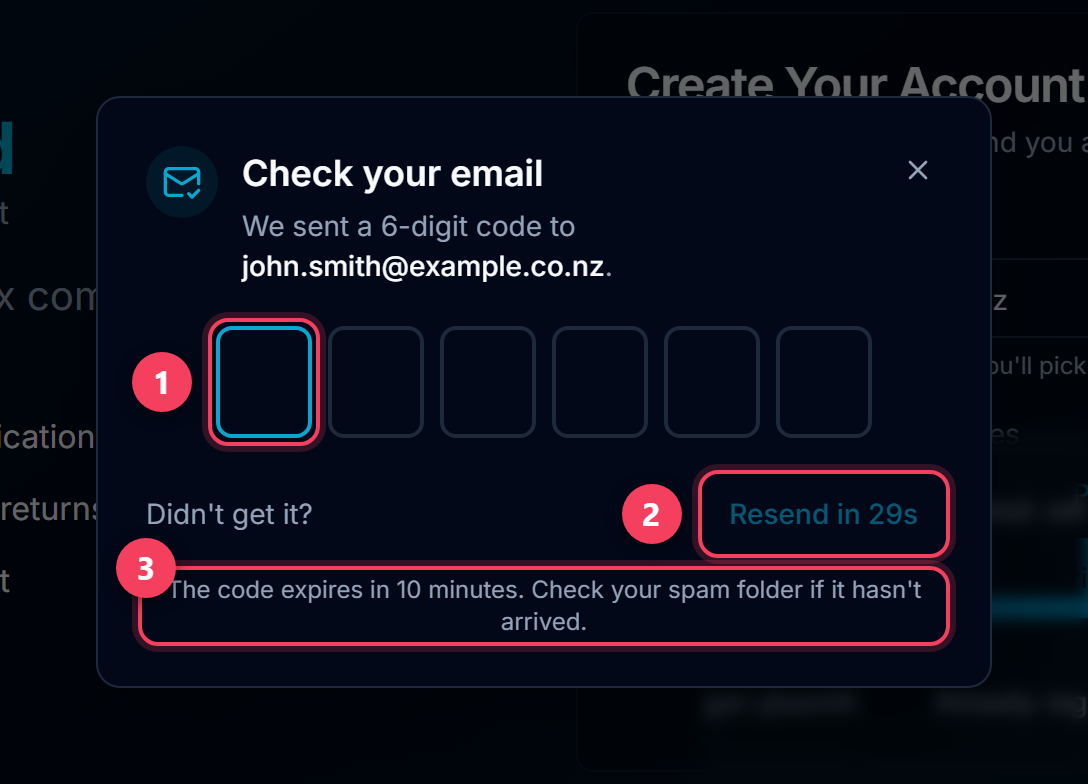
- Six boxes. Typing advances automatically, backspace steps back, and the arrow keys move between them.
- Send a new code unlocks after a 30-second cooldown.
- The code lasts 10 minutes and you get five attempts before you need a fresh one.
Tip: A correct code does two things at once: it verifies your address and signs you in. There is no Continue button — the sixth digit submits on its own.
4. Finish setting up
You land on a screen headed You're in. This used to be a three-step wizard; it is now one screen, because only two of the old questions ever mattered.
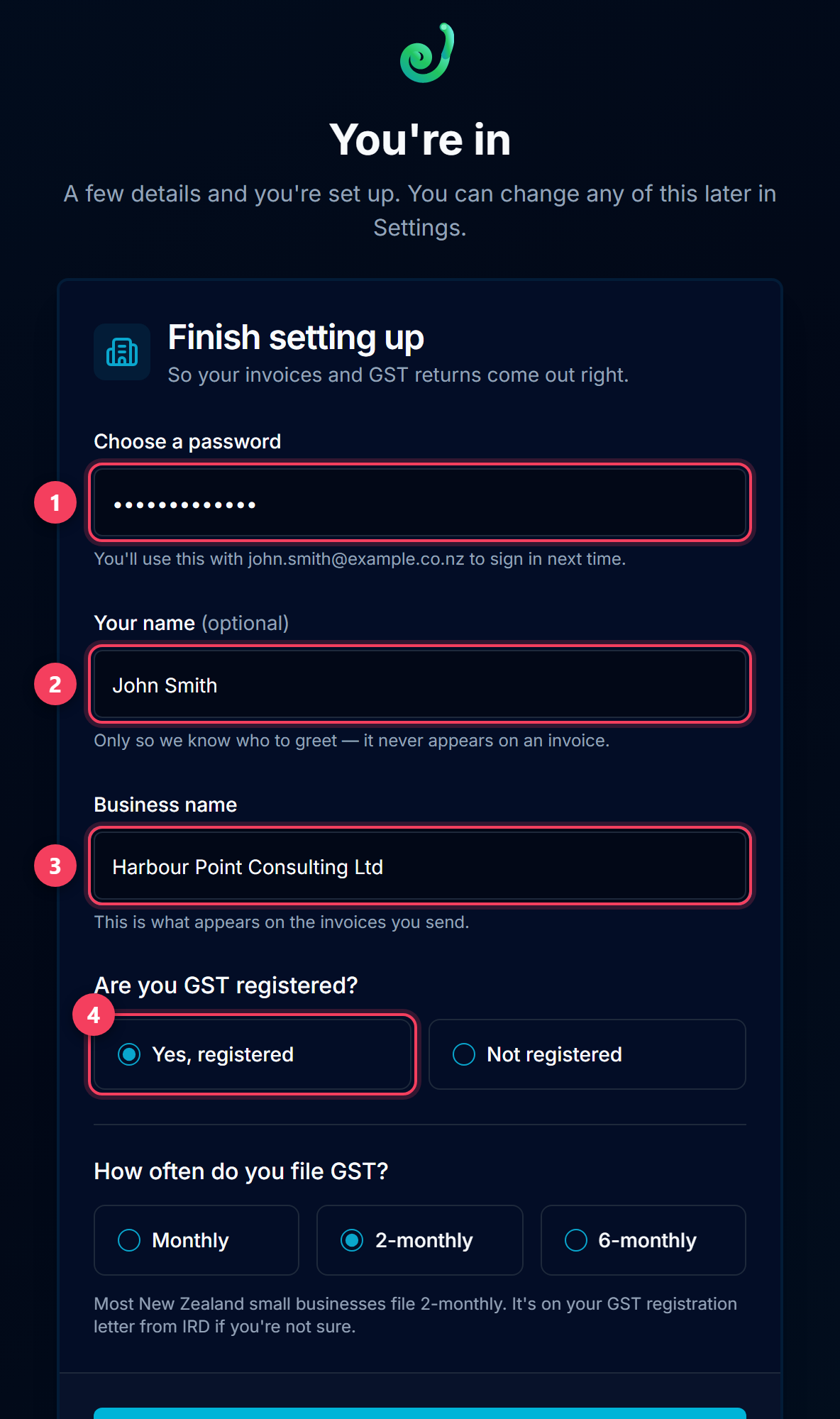
- Choose a password — at least 8 characters. You will use it with your email next time. Skipped entirely if you signed up with Google.
- Your name — optional. Only used to greet you; it never appears on an invoice.
- Business name — required. This is what prints on every invoice you send. Changeable later in Settings.
- GST registered? Yes or No. Answering No hides the GST pages entirely rather than showing you returns you do not have to file.
5. Tell it how often you file GST
Answer Yes, registered and one more question appears. Every GST return LedgerMind ever calculates is built on this answer, which is why it is the one thing you cannot skip past.
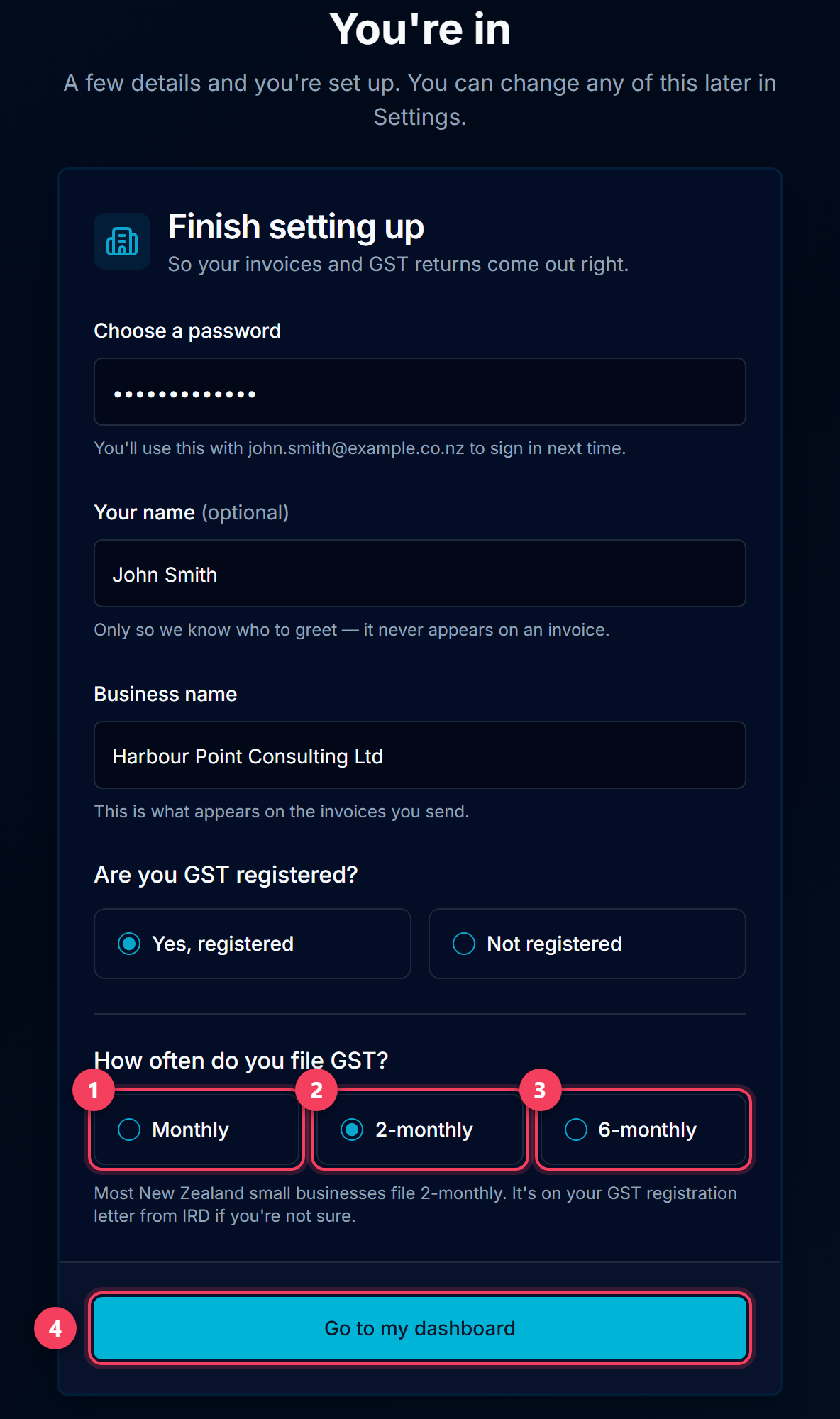
- Monthly — usually turnover over $24 million, or businesses that choose it for cash-flow reasons.
- 2-monthly — what most New Zealand small businesses file, and the default here.
- 6-monthly — available under $500,000 turnover, by arrangement with IRD.
Tip: If you are unsure, your filing frequency is printed on your GST registration letter from IRD. Go to my dashboard writes it all down and takes you into the product.
6. You're in
Total elapsed: about ninety seconds. Your dashboard is empty, and honestly so — no demo data has been invented to make it look busy.
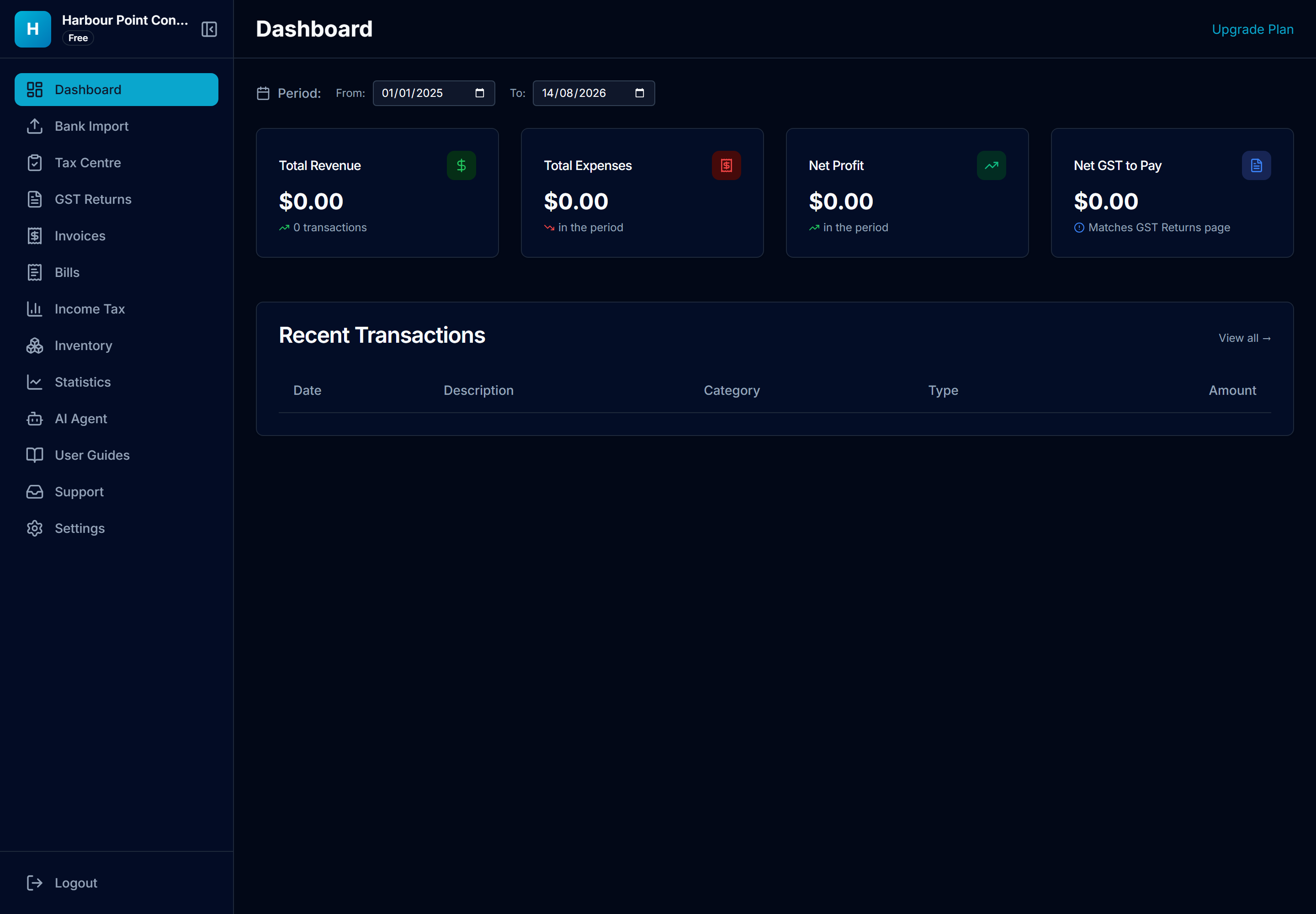
Tip: Note the plan badge under your business name in the top-left. A new account starts on Free, which is a permanent tier rather than a trial that expires.
7. Signing in next time
The six-digit code was for sign-up only. From now on it is the ordinary email and password pair — the password you chose when finishing setup.
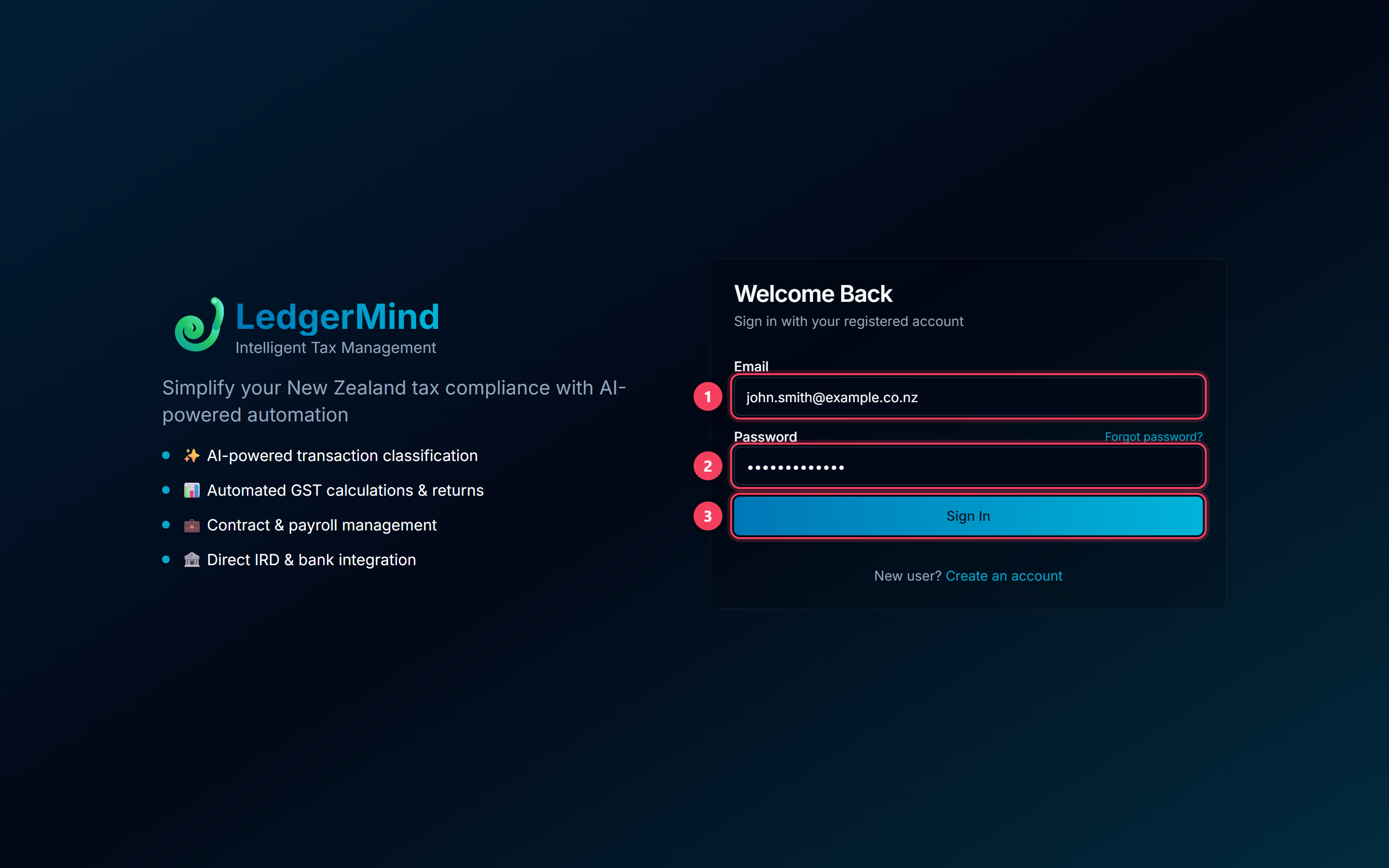
- The email you verified during sign-up.
- The password you chose. Forgot password? sits directly above this field.
- Sign In takes you straight back to your dashboard.
Common questions
Can I sign up with Google instead?
Yes — Continue with Google sits under the sign-up form. One click, no code, no password: Google has already verified the address, so we do not ask again. The one catch is the first time: a brand-new account still counts as a sign-up, so the Terms box has to be ticked before it will go through.
I'm an accountant managing several clients — do I sign up the same way?
Use For Accountants in the site header rather than the standard sign-up. Same six-digit flow, but it creates a practice account on the Team plan: instead of a single business dashboard you land in the Practice Portal and manage unlimited client books from one place, with everything the Premium plan includes for each client. It starts as a free 14-day trial with up to 3 client companies; we then activate a permanent plan priced to the size of your practice.