Running payroll and paying your team
Set up an employee once, and LedgerMind works out PAYE, KiwiSaver, ACC and ESCT for every pay. You review the figures, hand over the payslip, and pay them — no accountant needed for the everyday run.
Premium plan · 9 min read · Updated August 2026
1. How payroll works in LedgerMind
Payroll here is deliberately short. Five moves: set the person up once, enter the hours for the period, let LedgerMind calculate the pay and show its working, review it and generate the payslip, then pay the employee and file with IRD. Everything that can be calculated is calculated for you at the correct rates. The two things that still need you are paying from your own bank and filing in myIR — and direct IRD filing is on the way. Payroll is on the Premium plan.
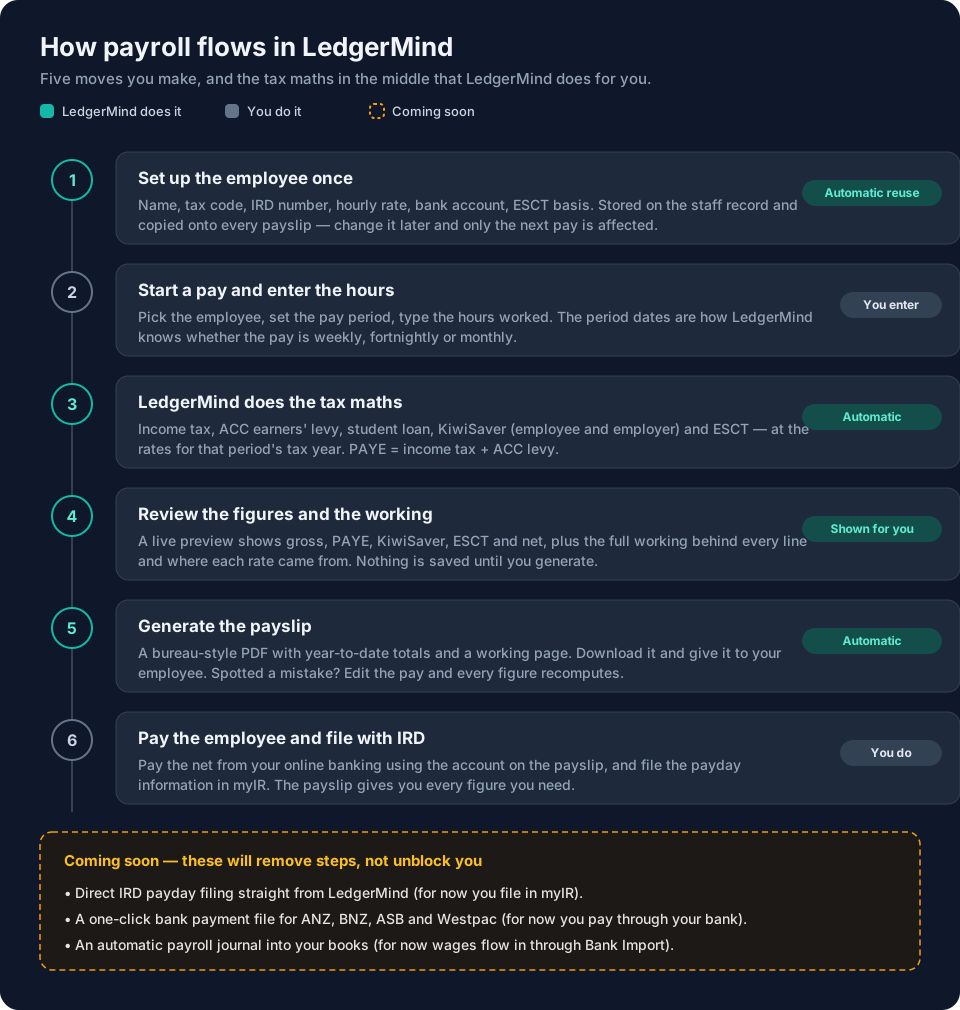
- Set up each employee once — their details, tax code, KiwiSaver rate and bank account.
- Start a pay for the period and enter the hours worked.
- LedgerMind calculates PAYE, KiwiSaver, ACC and ESCT and shows the full working.
- Review the figures and generate the payslip PDF.
- Pay the employee from your bank, and file the payday information with IRD.
Tip: Nothing is saved to a payslip until you press Generate — a live preview shows every figure first, so you can check the pay before you commit it.
2. Set up each employee once
An employee's details live in one place and are copied onto each document at the moment it is generated, so raising a rate later changes the next pay and never rewrites one already issued. Open Payroll in the sidebar, go to the Timesheets tab and click Manage staff (the Payroll page also links you there when your list is empty).
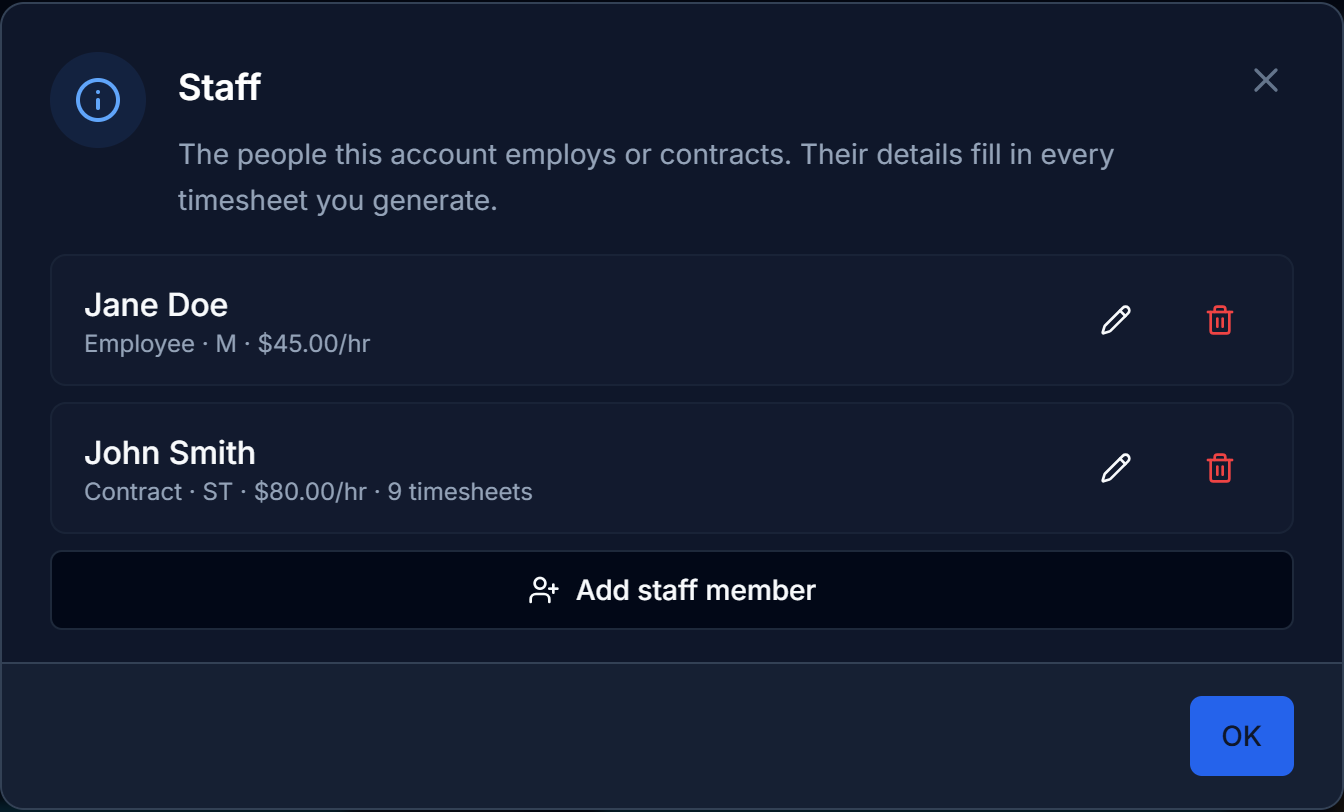
- Full name and employment type (Employee or Contract).
- Tax code — M or ME for a primary job, or a secondary code (SB, S, SH, ST, SA). Tick student loan to add SL. Use the code the employee gave you on their IR330.
- IRD number.
- Hourly rate — what a new pay for this person starts from.
- Bank account — where their pay goes. It is copied onto the payslip so it always shows where that pay was sent.
- ESCT threshold — their total pay plus employer KiwiSaver for the previous tax year. IRD uses it to set the ESCT rate on the employer contribution.
Tip: Don't know the ESCT threshold? Leave it blank. LedgerMind estimates it from this pay annualised — right for a first-year employee, an estimate for everyone else — and the payslip says which was used.
3. (Optional) Record the month’s hours on a timesheet
If you keep timesheets, record the month's hours on the Timesheets tab (Payroll → Timesheets) — it gives you a timesheet record and a PDF. This is optional and separate from the pay: you read the total hours off it and enter them on the pay run. If you already know the hours, skip straight to the next step.
4. Start a pay for the period
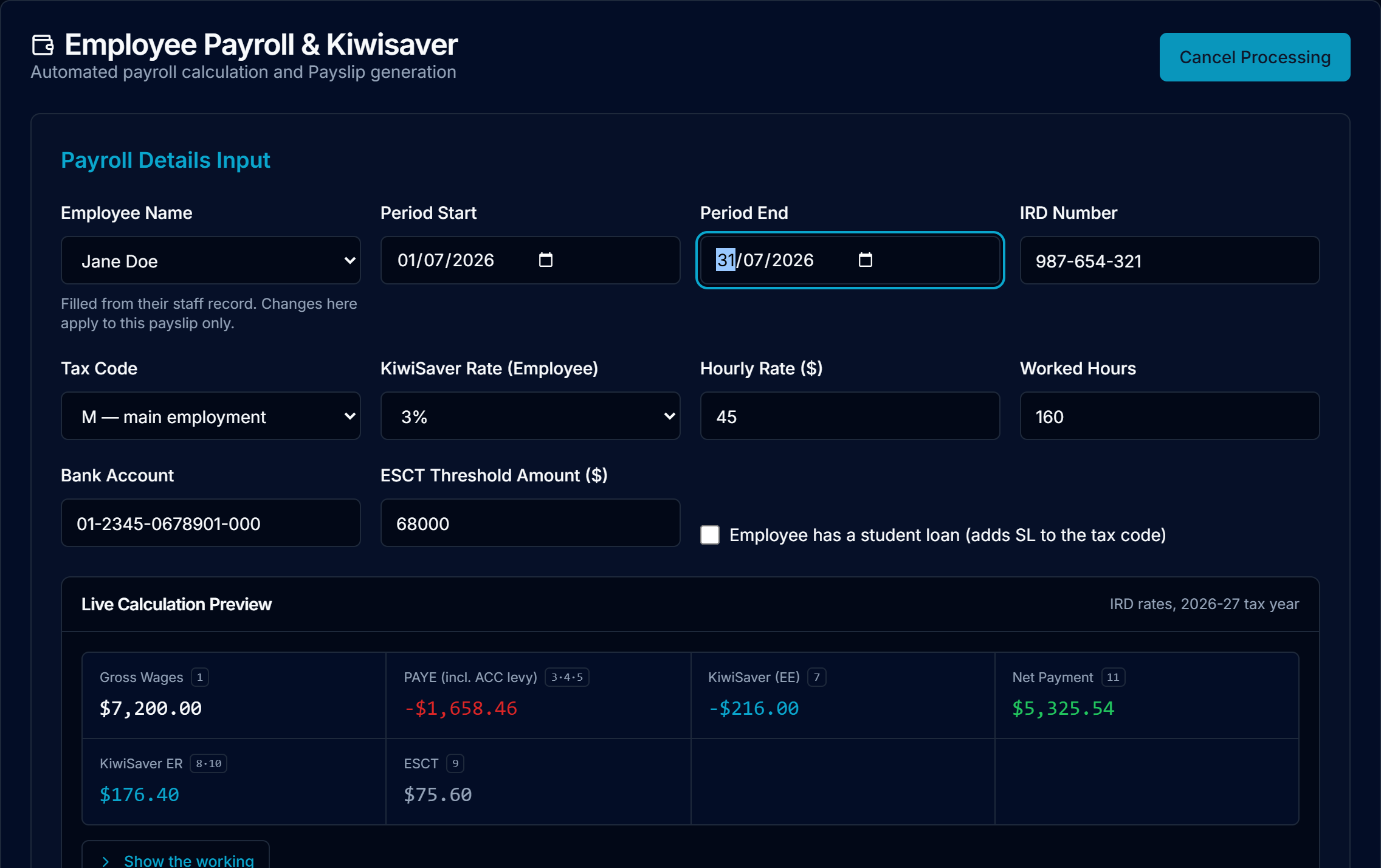
On the Payroll → Pay runs tab, start a new pay and pick the employee — their tax code, rate, KiwiSaver, bank account and ESCT basis fill in from their staff record. Then set the period you are paying.
- Pick the employee from the list.
- Set the period start and end. This is how LedgerMind knows whether the pay is weekly, fortnightly or monthly — it counts the days — and it shows what it chose in the working.
- Enter the hours worked and check the hourly rate. Gross pay is simply rate × hours.
- Choose the KiwiSaver rate — the employee’s chosen contribution, or Not enrolled.
- Glance at the bank account and ESCT threshold carried over from the staff record.
Tip: Getting the period right matters: the frequency decides how the pay is annualised for the tax bands. A whole month entered as a single day would be taxed as if it were paid every day.
5. Let LedgerMind do the tax maths
As you type, LedgerMind works out every deduction against the rates for that period's tax year: income tax (with the independent earner tax credit on the ME code), the ACC earners' levy (capped at the annual maximum), any student loan, the employee's KiwiSaver deduction, and the employer's KiwiSaver contribution with ESCT taken off it. On a New Zealand payslip, PAYE means income tax plus the ACC levy — which is exactly what LedgerMind shows.
Tip: Rates are held per tax year and chosen from the pay period, not from today. A pay for a period last year is computed on last year’s rates.
6. Review the breakdown and the working
The preview shows every figure and a full working — the arithmetic behind each line and where each rate came from. Check the gross, the PAYE, the net pay, and the KiwiSaver and ESCT lines. This is your review: nothing is filed or paid at this point, so take the time to be sure.
Tip: The working is stored on the payslip itself, so re-opening a pay years later shows the exact calculation it was paid on — even after the rates have changed.
7. Generate the payslip
Press Generate and the pay is saved and a payslip PDF is produced — laid out the way a New Zealand payroll bureau lays one out, with year-to-date totals and a working page. Download it and give it to your employee.
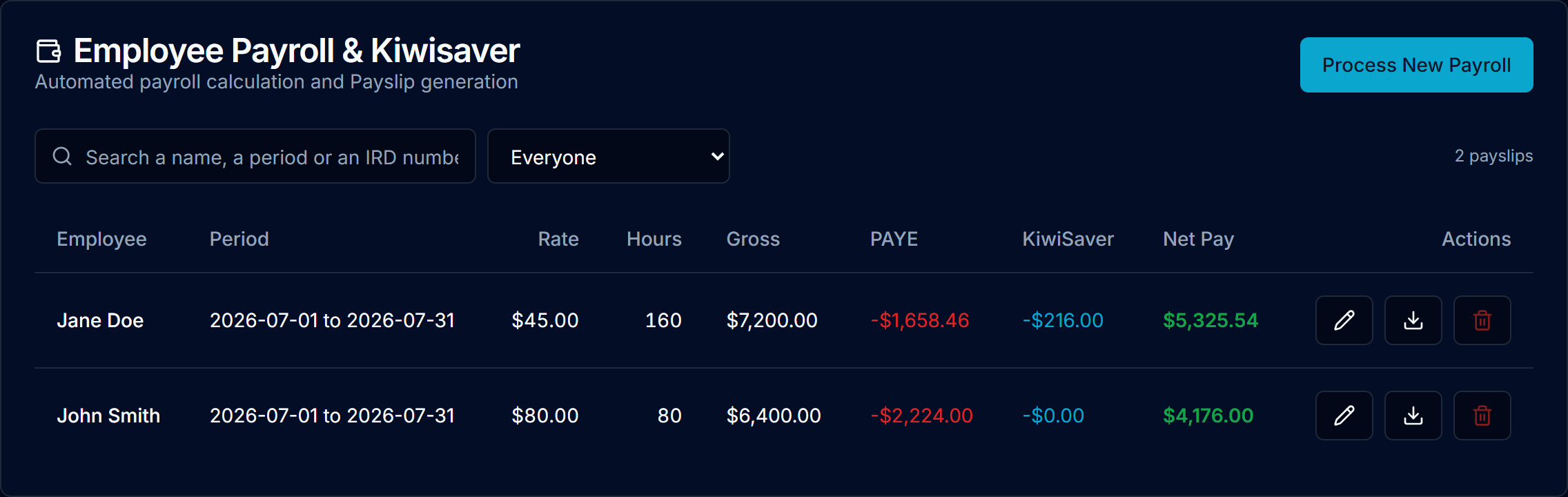
- Generate saves the pay to your payroll list.
- Download the PDF to send or print.
- The payslip carries the net pay and the bank account it should be paid into.
Tip: Made a mistake? Open the pay and edit it. Every figure recomputes from your correction — including the tax, if you change the period and the pay frequency changes with it.
8. Pay your employee
LedgerMind prepares the pay; you make the payment from your own online banking. Use the net pay and the bank account shown on the payslip. Then pay the PAYE and KiwiSaver you deducted to IRD by their due date — for most small employers that is the 20th of the following month.
Tip: Coming soon: a one-click bank payment file for ANZ, BNZ, ASB and Westpac, so you can pay everyone in one upload. For now you pay through your bank as you normally would — LedgerMind never moves money on your behalf.
9. Record the wages in your books
When you import your bank statement — or your bank feed syncs — the wage payment and the PAYE payment appear as transactions. Categorise them as "Employee Costs — Wages" and "Employee Costs — PAYE". PAYE carries no GST and never appears on a GST return, so coding it this way keeps both your profit and loss and your GST correct.
Tip: Coming soon: an automatic payroll journal that posts the pay to your books the moment you generate it. For now the wages flow in through the bank import you already do.
10. File with IRD (payday filing)
New Zealand employers file employment information to IRD every payday. For now you do this in myIR — enter the gross, PAYE, KiwiSaver and student-loan figures from the payslip. They are all on the payslip and its working, so it is a matter of copying the numbers across.
Tip: Coming soon: direct payday filing from LedgerMind to IRD. It requires LedgerMind to be approved as an IRD-accredited digital service provider first, which is in progress. Until it is live, myIR is the way — and the payslip gives you every number you need.
11. What’s automatic, what you do, and what’s coming
So you know exactly where the line is today:
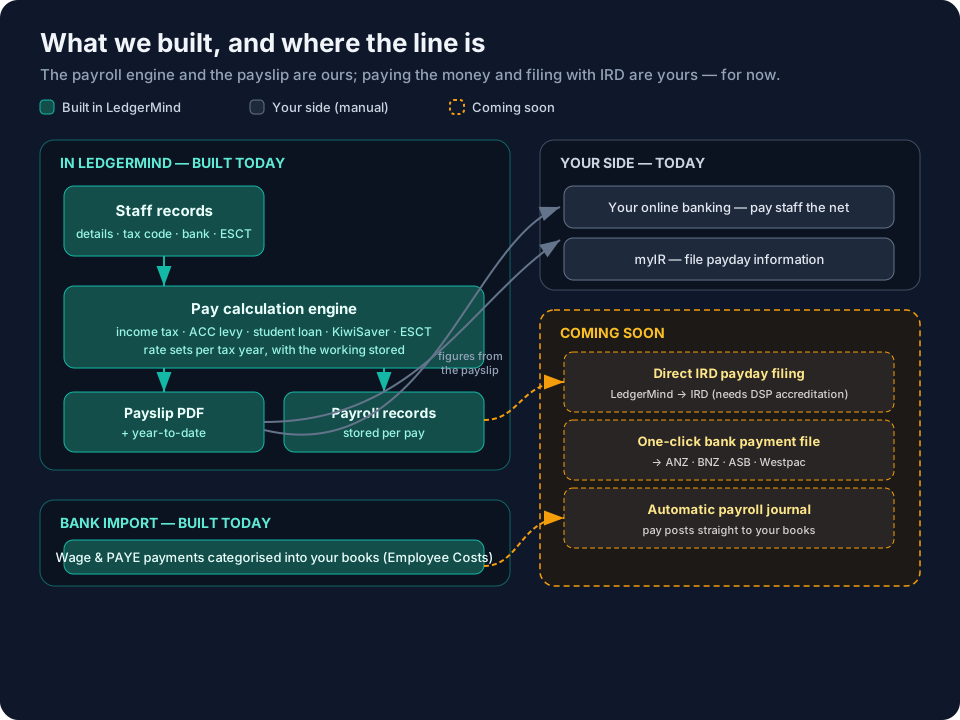
- Automatic — PAYE (income tax + ACC levy), student loan, KiwiSaver for employee and employer, ESCT, the payslip PDF and the year-to-date totals, all at the correct tax-year rates and with the working shown.
- You do — enter the hours, pay the employee and IRD from your bank, categorise the payment in Bank Import, and file the payday information in myIR.
- Coming soon — direct IRD payday filing, a one-click bank payment file for the major banks, and an automatic payroll journal into your books.
Tip: None of the "coming soon" items stops you running payroll today. They will remove manual steps, not unblock anything — the full calculation and the payslip are here now.
Common questions
Do I still need an accountant to run payroll?
For the regular run, no. LedgerMind does the calculations and produces the payslip; you handle the bank payment and the myIR filing, both of which are straightforward once the figures are in front of you. Keep your accountant for year-end, for setting someone up in an unusual situation, and for anything you are unsure about — but the monthly pay is something you can run yourself.
Which tax codes are supported?
The primary codes M and ME, and the secondary codes SB, S, SH, ST and SA — each optionally with a student loan (SL). Use the code your employee entered on their IR330 tax code declaration. If someone gives you a code that is not on the list, they may be on a special or tailored code, which is worth checking with IRD.
How does it know whether the pay is weekly, fortnightly or monthly?
From the period dates you enter — it counts the days in the period and picks the frequency, then shows what it chose in the working. This matters because the frequency is how the pay is annualised to find the right tax bands. Always set the period to the actual pay period.
What is the ESCT threshold, and what if I don’t know it?
ESCT is the tax on the employer’s KiwiSaver contribution, and its rate is set by the employee’s total pay plus employer KiwiSaver for the previous tax year — that figure is the ESCT threshold. If you don’t have it (for example a new starter), leave it blank and LedgerMind estimates it from this pay annualised. The payslip notes that it was estimated, so the basis is always visible.
Can I pay a salary instead of an hourly rate?
The pay is worked out as hourly rate × hours. For a salaried employee, enter their standard hours for the period together with their hourly rate (annual salary ÷ annual hours), or enter the agreed gross for the period as the rate against a single hour. The tax comes out the same either way — what matters is the gross for the period.
I generated a pay and then spotted a mistake — can I fix it?
Yes. Open the pay and edit it. Every figure recomputes from your correction, and the next time you download the PDF it reflects the change. Because the whole calculation is redone, even changing the period — which can change the pay frequency — is handled correctly rather than leaving the old tax in place.
Are the tax rates up to date?
Rates are held as a set per tax year, and each set is checked by a person before it is relied on. A pay always uses the rates that applied when its period ended, so both current and back-dated pays are computed correctly, and the working records which set was used and when it was verified.
When will IRD filing and bank payments be automatic?
Both are on the roadmap. Direct IRD payday filing depends on LedgerMind completing IRD’s digital service provider accreditation; the one-click bank payment file for ANZ, BNZ, ASB and Westpac follows after. They will switch on inside the app when they are ready — your workflow won’t change, there will simply be fewer manual steps. Until then, myIR and your online banking cover both, and the payslip gives you every figure you need for each.